
How to Merge PDFs Without Uploading Them
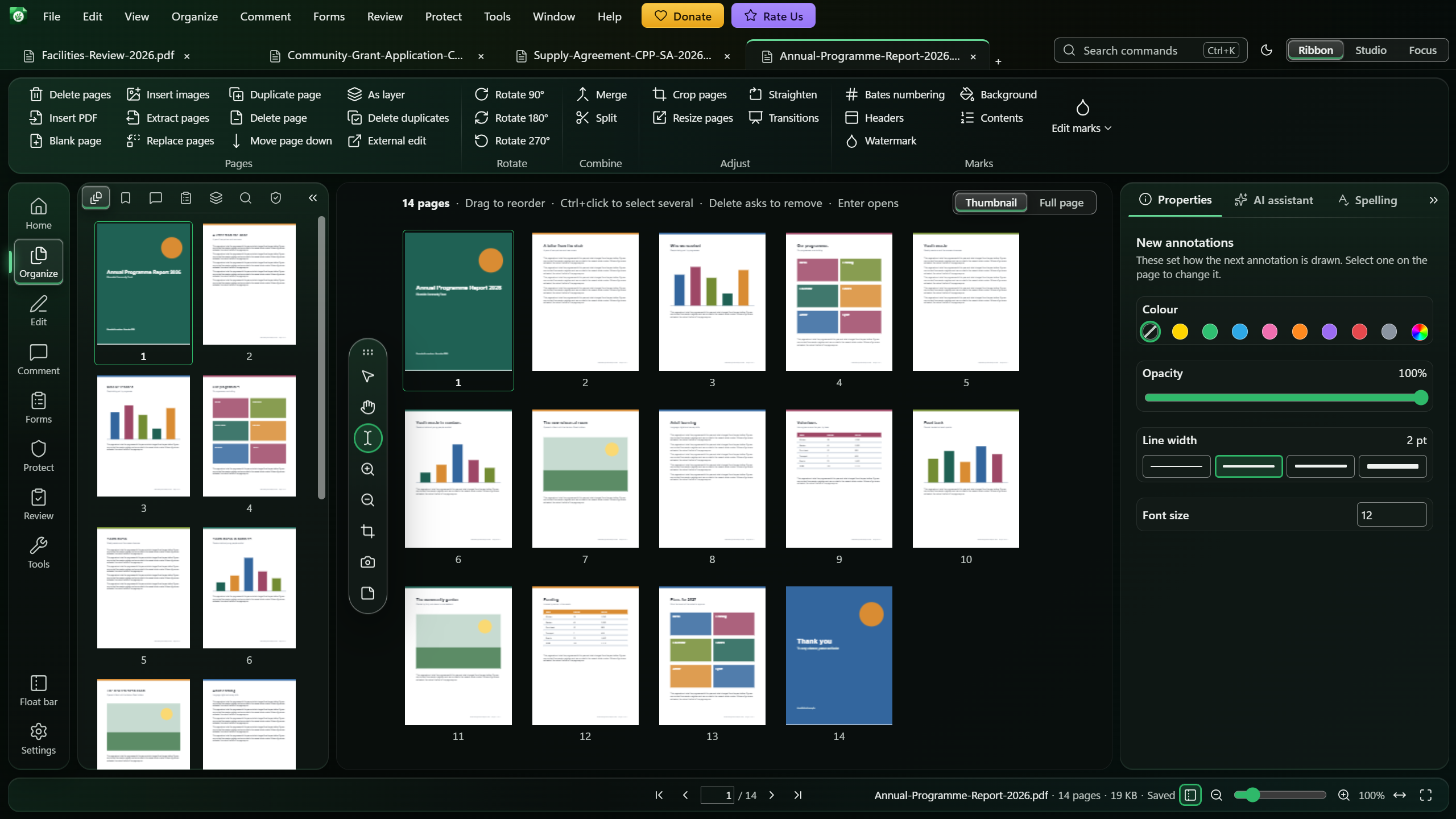
Open one of the PDFs in Monstera PDF Editor, choose Organize, then Merge, add the other files, set their order and choose Merge. The files are combined on your own PC, so nothing is uploaded, and the original files are not changed. It is free, with no page limit and no watermark.
Why merge on your own PC
Merging online means sending each file to someone else's server first. For a contract, a bank statement, medical records or anything with an ID number in it, that is a copy of the document you no longer control.
Monstera merges on your computer. It has no server that receives your documents and needs no account, and merging works with no internet connection at all.
How to merge PDFs in Monstera
Open the first PDF
Install Monstera free from the Microsoft Store and open the document the others should be added to.
Open Merge
In the rail, choose Organize, then Merge in the Combine group.
Add the other PDFs
Under Merge in, choose Add a document to list another open document, or Choose file to pick a PDF from your computer.
Set the order
Use the arrows beside each document to move it up or down. Documents go in from the top of the list down; the cross removes one.
Choose where they go
Under Where, choose Before or After, then the first page, the last page or a page number. By default they go after the last page.
Merge and save
Choose Merge, then save, or use Save a copy to keep the result as a new file.
Merge only some pages
Each document in the list has a Pages to take box. Type the pages you want, such as 1-3, 5, or choose Choose pages and click the pages themselves; pages you leave out are faded. An empty box takes every page.
The same document can be listed more than once, so you can take its first pages here and its last pages somewhere else.
Good to know
- Your originals are not changed. The pages are copied into the document you are working on.
- Comments and marks come with the pages, so highlights, notes and stamps survive the merge.
- One undo removes the whole merge. A merge is one step, so Ctrl+Z takes out every page it added.
- Password-protected PDFs can be merged; they show their page numbers without previews, and the numbers choose pages just the same.
- Rearrange afterwards in the page organiser, which shows every page as a card you can drag, rotate or delete.
- Need the opposite? Split a document breaks one PDF into several files.
Questions
Are my PDFs uploaded when I merge them?
No. Monstera merges the files on your own computer. It has no server that receives your documents, and merging works with no internet connection.
Will merging change my original files?
No. The pages are added to the document you are working on, and the other documents are not changed. Use Save a copy to keep the merged result as a new file.
Can I merge only some pages of a PDF?
Yes. Type the pages in the Pages to take box, such as 1-3, 5, or click them in Choose pages. An empty box takes every page.
Is there a limit on how many PDFs or pages I can merge?
Monstera sets no page limit, adds no watermark and needs no account. It is free.
Full instructions in the Help
Related guides
How to Split a PDF into Separate Files
Make one PDF per page, or one per range of pages, without touching the original.
How to Make a PDF Smaller on Windows
Save a lighter copy for email, and see the new size before you save it.
How to Compare Two PDFs and See What Changed
Find every change between two versions, marked on both pages side by side.
Get Monstera Free for Windows
Over 150 PDF tools, free and open source, with no subscription, no account and no watermark.