
How to Compare Two PDFs and See What Changed
Open both PDFs in Monstera PDF Editor, choose Review, then Compare, and choose Compare in the side-by-side view. Monstera lists every difference, changed words, moved text, comments, pictures and added or removed pages, and marks each one on both documents. It is free, runs on your PC, and changes neither file.
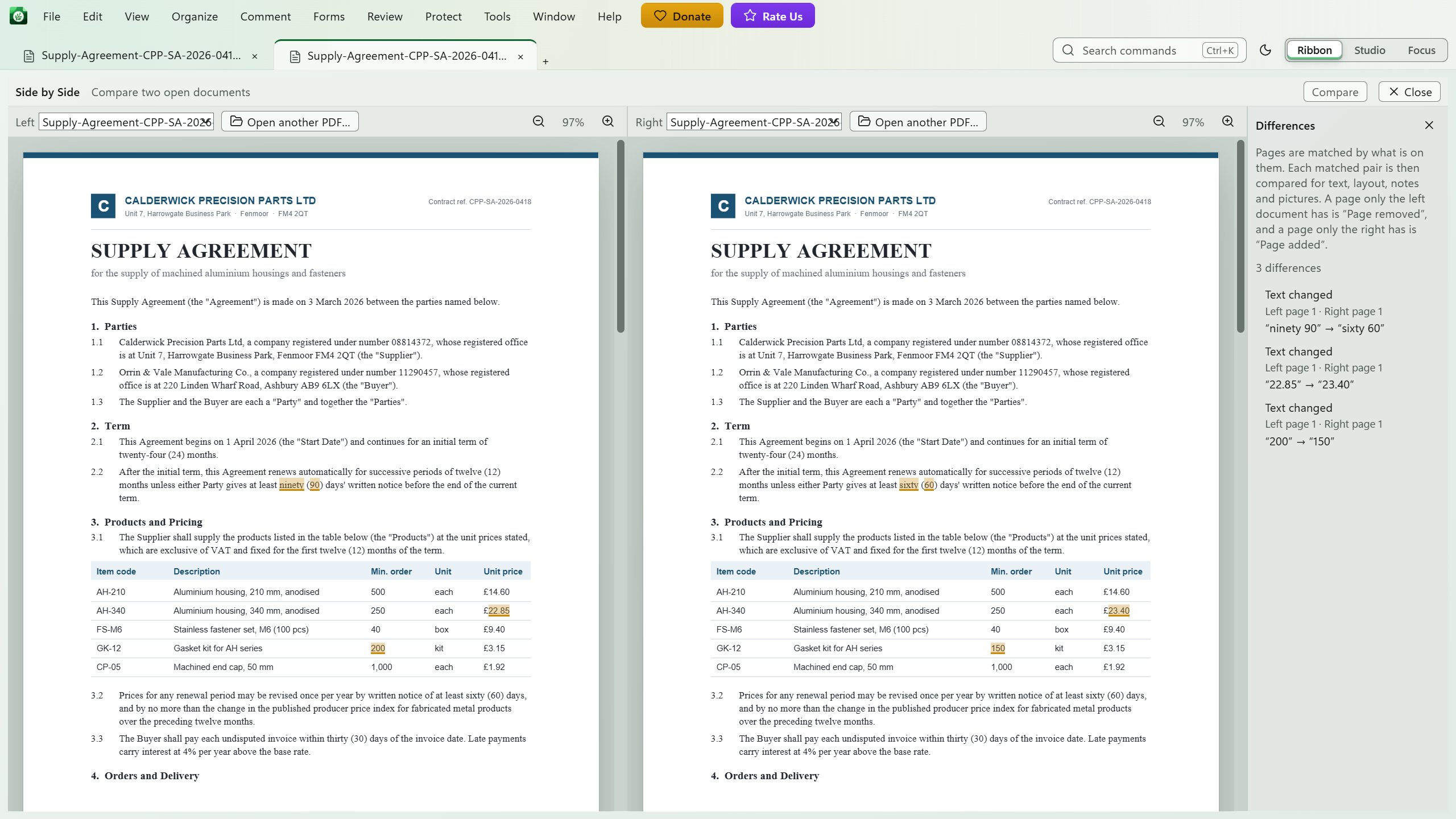
What Monstera finds
- Text changed: each word that differs, marked where each document has it, so a word kept between two changes stays unmarked.
- Moved: text that is the same but sits somewhere else on the page.
- Annotations: comments and marks added, removed or changed, including a changed note or colour.
- Pictures: images and drawings that differ.
- Pages: pages added or removed, and pages whose size changed.
How to compare two PDFs in Monstera
Open both versions
Install Monstera free from the Microsoft Store and open the two PDFs.
Open Side by Side
In the rail, choose Review, then Compare. The more recently written file goes on the right. Use the list at the top of each half to choose a different document, or Open another PDF.
Compare
Choose Compare. The bar shows how far it has got, and Stop stops it.
Go through the differences
The Differences list shows each change with its page on the left and the right. Choose one to take both halves to it.
Close
Choose Close or press Esc to go back to your document.
Good to know
- An added page does not throw everything off. Pages are matched by what is on them, not by their number, so the pages after an inserted page are still compared with their counterparts.
- Scans can be compared: pages with no text are matched by how they look.
- Neither document is changed. Side by Side only reads them, and each half scrolls and zooms on its own.
- Big revisions: up to 1,000 differences are listed. Very small changes to pictures can be missed.
Questions
Can I compare two PDFs for free?
Yes. Compare is part of Monstera, which is free with no subscription, no account and no watermark.
What differences does Monstera find?
Changed words, moved text, changed page sizes, added, removed or changed comments and marks, changed pictures, and pages added or removed.
Does comparing change either PDF?
No. Side by Side only reads the two documents; nothing in either one is changed.
Are my documents uploaded to compare them?
No. The comparison runs on your own computer, with no internet connection needed.
Full instructions in the Help
Related guides
How to Edit Text in a PDF for Free on Windows
Change the words already on a page, in place, in the page's own font.
How to Merge PDFs Without Uploading Them
Combine several PDFs into one on your own PC, in the order you choose.
How to Sign a PDF with a Digital Certificate
Sign with your .p12 or .pfx certificate, with or without a signature on the page.
Get Monstera Free for Windows
Over 150 PDF tools, free and open source, with no subscription, no account and no watermark.