
How to Edit Text in a PDF for Free on Windows
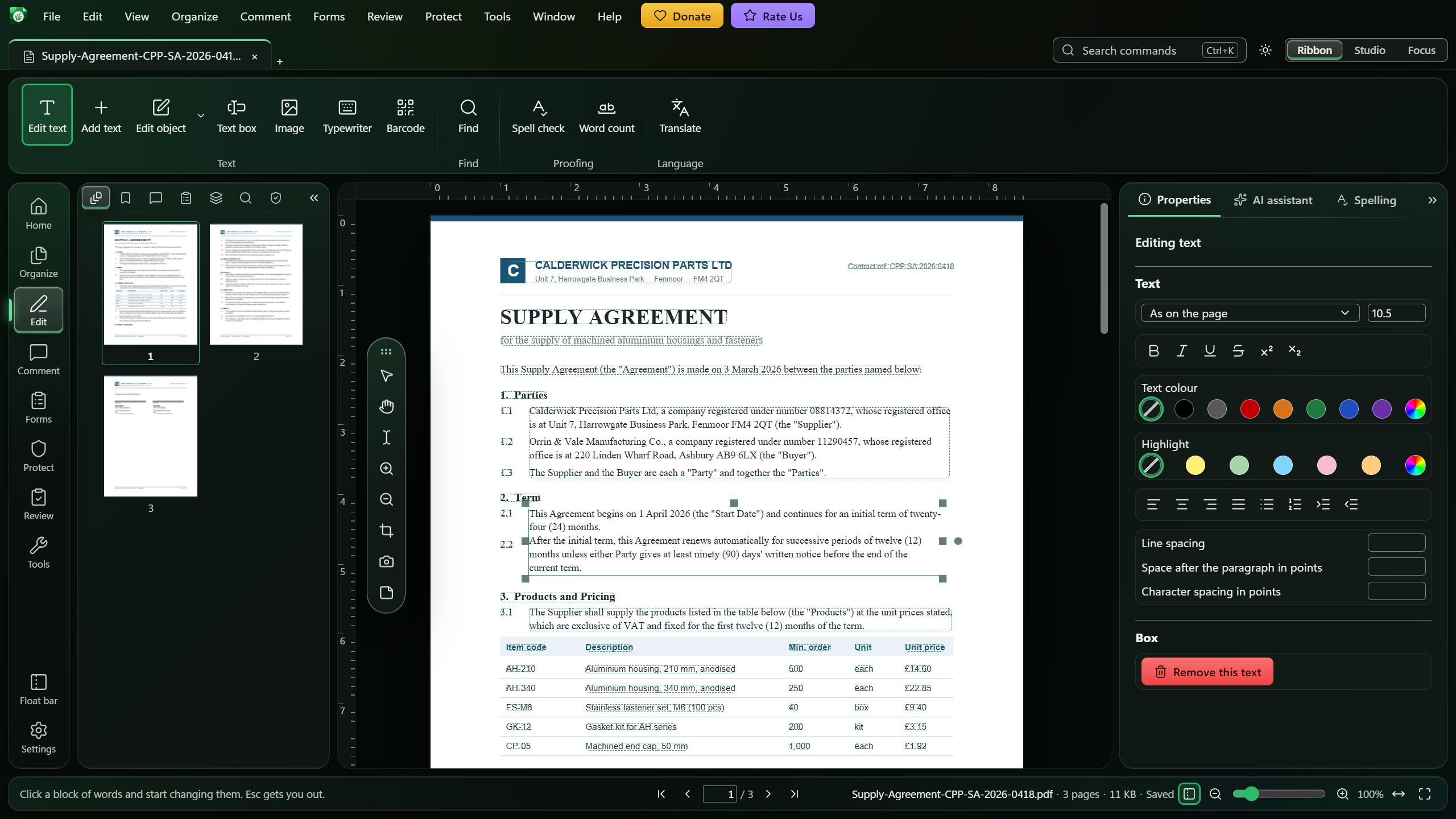
Open the PDF in Monstera PDF Editor, press Ctrl+Shift+T, click the paragraph you want to change and type. Monstera rewrites only that paragraph, in the page's own font wherever that font has the letters, and leaves everything else on the page exactly as it was. It is free, it runs on your PC, and it adds no watermark.
First, check that the PDF has real text
Try to select a few words with the mouse. If you can, the PDF contains real text and you can edit it straight away.
If nothing selects, the page is a scan: a picture of the words rather than the words themselves. Monstera notices this. When Edit text finds a page with no text, it offers to recognise the page first, and once the words are read you edit them like any other. The guide on making a scanned PDF searchable explains that step.
How to edit PDF text in Monstera
Open the PDF
Install Monstera free from the Microsoft Store, then open your PDF, or drop it anywhere on the start screen.
Turn on Edit text
In the rail on the left, choose Edit, then Edit text, or press Ctrl+Shift+T. Every block of text you can edit is outlined.
Open the paragraph
Click a block once to select it, then click again where you want the cursor. A double-click does both at once.
Type your change
Type as you would in a word processor. A line that gets too long wraps, and the paragraph grows downwards.
Finish and save
Press Esc or click away, and the change is written into the page. One Ctrl+Z puts the whole paragraph back. Save the file, or use Save a copy to keep the original as it was.
What happens to the font
A PDF often carries only the letters it needed when it was made, so the page's font may not have every letter you type. Monstera deals with this one word at a time:
- Where the page's font has the letters, your words are set in it, with the same size and colour.
- Where it does not, that word is set in another copy of the same font already in the document, then in the closest font on your computer or one that comes with Monstera. The rest of the line keeps the page's font.
- A change is never refused because of the font. In the rare case that no font can draw a character, it shows as a small box, the text still holds the real character so search and copy find it, and Monstera tells you where.
To pick a font yourself, open the font list in the Properties tab. In Edit text it is grouped into In this document, Closest matches, All fonts and As on the page, which puts the selected words back in the page's own font.
Tips that save time
- Make room before you write more. A paragraph that grows spreads downwards over whatever is below it; nothing underneath is pushed down. If you are about to add a sentence, drag a side handle to widen the block first.
- Format as you type. Ctrl+B, Ctrl+I and Ctrl+U work while you type, and the Properties tab sets the size, colour, highlight, alignment, bullets and spacing.
- Add a new line of text with Add text. It becomes part of the page and starts in the look of the text nearest to where you click. A Text box is different: a comment that sits on top of the page and can be removed without touching it.
- Change a word everywhere with Find and replace rather than editing each page by hand.
- Turned, slanted and right-to-left text is edited where it stands. Text that runs up the page, and Hebrew or Arabic, works too.
When a PDF should not be edited
Monstera tells you plainly rather than damaging a file:
- Signed documents. Monstera asks first, because any change stops the signatures verifying.
- Protected documents. If Monstera could not put the protection back exactly as it was when saving, it does not change the file, because saving would remove the protection.
- A few unusual pages. Where a change cannot be made without disturbing other text, Monstera says so and the page stays as it was.
Questions
Is editing PDF text in Monstera really free?
Yes. Monstera is free to download and use, with no trial, no subscription and no paid tier. There is no watermark and no account.
Will my changes match the original font?
Wherever the page's own font has the letters you type, yes: your words are set in it at the same size and colour. Where it does not, Monstera uses the closest font it can find, word by word, and the rest of the line keeps the original font.
Can I edit a scanned PDF?
Yes, after its words are recognised. When Edit text finds a page with no text it offers to recognise it, on your PC. You then edit the words like any others, and the scanned picture itself is never altered, so Ctrl+Z puts the page back.
Is my PDF uploaded anywhere?
No. Editing runs on your own computer, with no internet connection needed. Monstera has no server that receives your documents.
Full instructions in the Help
Related guides
How to Make a Scanned PDF Searchable, Offline
Turn scanned pages into text you can search, select and copy, without uploading them.
How to Convert a PDF to Word Offline
Turn a PDF into an editable Word file on your own PC, layout and pictures included.
How to Fill In and Create PDF Forms
Fill any PDF form, turn a flat form into a fillable one, or build your own.
Get Monstera Free for Windows
Over 150 PDF tools, free and open source, with no subscription, no account and no watermark.