
How to Redact a PDF Permanently
Open the PDF in Monstera PDF Editor, mark what must go with Redact text or Redact area, check the marks, then choose Protect, Apply redactions and save. Monstera removes the text, pictures and drawings under every mark from the file itself, so they cannot be copied, searched or recovered. It is free and runs on your own PC.
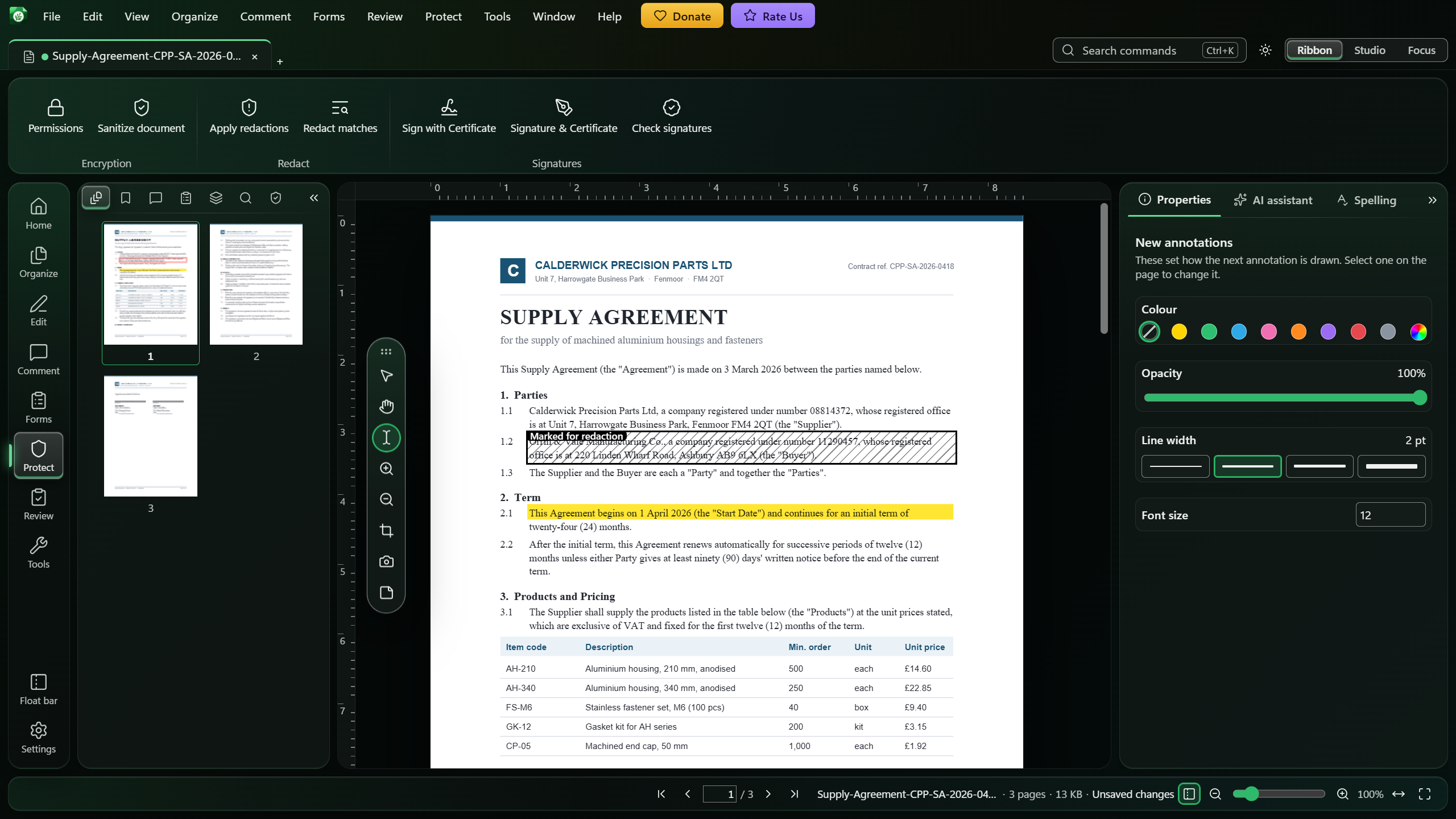
A black box is not a redaction
Drawing a black rectangle over a line hides it on screen, but the words are still in the file underneath, where anyone can select, copy or search them. A real redaction deletes the content itself.
That is what Monstera does. Applying a redaction removes the text, pictures and drawings under each mark, along with any comments and form fields there, and leaves a solid box or nothing in its place.
How to redact a PDF in Monstera
Open the PDF
Install Monstera free from the Microsoft Store and open the document.
Mark what must go
In the rail, choose Comment. Use Redact text and drag across the words, or Redact area and drag a box over a picture or signature.
Check the marks
Each mark is hatched and labelled Marked for redaction, with the words still visible underneath so you can check them. Delete any mark you did not mean.
Apply the redactions
In the rail, choose Protect, then Apply redactions. Choose whether to apply to this page or every page, and whether to leave a filled box or nothing.
Save
Choose Apply redactions, then save the document.
Redact a name or number everywhere
To remove a name, account number or email address from the whole document, choose Protect, then Redact matches. Type the text, choose every page, and choose Mark matches. Every match is marked for you; check them, then apply as above. The search ignores capitalisation, and a match that wraps onto the next line gets a mark on each line.
If the document is a scan, its words are a picture and a search finds nothing. Read them first with OCR, then redact by search.
What else Monstera removes
- Bookmarks and document properties, such as the author and subject, because they can spell out what you are redacting. The title is removed too, unless you choose to keep it.
- Old copies of the file. Saving after a redaction keeps no backup, and permanently deletes the older backups and undo copies Monstera made, since they would still hold what you removed.
- Hidden extras, if you also run Sanitize document: scripts, attached files and actions that send or fetch data.
Safety nets
- Nothing is removed until you apply. Marks alone remove nothing.
- Forgot to apply? If you save, export, print or send a document that still has marks, Monstera asks whether to apply them first.
- Changed your mind? Undo works while the document is still open. Once it is saved, the content is gone for good, which is the point.
Questions
Is the redacted text really gone?
Yes. Applying a redaction removes the text, pictures and drawings under each mark from the file itself, so they cannot be selected, copied, searched or recovered from it.
Can I redact every place a name appears?
Yes. Protect, then Redact matches, finds and marks every match of a word or phrase on every page. You check the marks, then apply them.
Can I redact a scanned PDF?
Yes. Mark areas of the scan with Redact area, or read its words with OCR first, on your own PC, and then redact by search.
Is my document uploaded to redact it?
No. Redaction runs on your own computer, with no internet connection needed.
Full instructions in the Help
Related guides
How to Password-Protect a PDF
Lock a PDF with AES-256 and choose whether readers may print or copy.
How to Make a Scanned PDF Searchable, Offline
Turn scanned pages into text you can search, select and copy, without uploading them.
How to Sign a PDF with a Digital Certificate
Sign with your .p12 or .pfx certificate, with or without a signature on the page.
Get Monstera Free for Windows
Over 150 PDF tools, free and open source, with no subscription, no account and no watermark.